
Backing up your photos and files is one of the smartest ways to protect your important data from loss. Whether it’s cherished memories or essential work documents, losing files can be frustrating and costly. Fortunately, backing up your data doesn’t have to be complicated. In this post, we’ll explore straightforward methods and best practices to ensure your photos and files are safe.
Why Backing Up Your Data Matters
Accidents happen: devices get lost, stolen, or damaged. Hard drives can fail, and files may get accidentally deleted or corrupted. Having a backup means you have a copy of your data stored somewhere else, making it much easier to recover what’s lost.
Types of Backup Options
Before diving into the backup process, it helps to understand the common types of backup options available:
1. External Hard Drives
Using an external hard drive is a popular and cost-effective method. You connect the drive to your computer and manually copy your photos and files or use software to automate the process.
2. Cloud Storage Services
Cloud storage involves uploading your files to online servers managed by companies like Google Drive, Dropbox, Microsoft OneDrive, or Apple iCloud. This method allows easy access from multiple devices and protects your data even if your physical devices fail.
3. USB Flash Drives
Smaller and more portable than external hard drives, USB flash drives are good for quick backups or transferring files but usually have limited storage capacity.
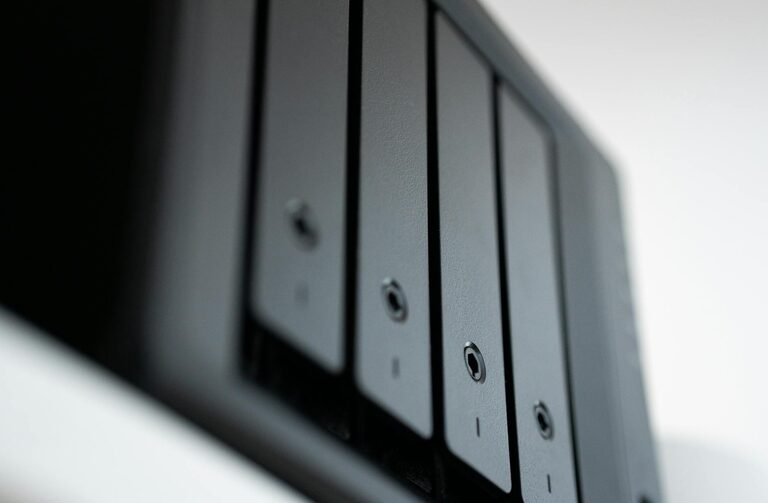
4. Network Attached Storage (NAS)
For those who want a centralized backup solution at home, a NAS device stores your data on a dedicated server connected to your home network. It often supports automatic backups and remote access.
Step-by-Step Guide to Backing Up Your Photos and Files
Step 1: Assess What You Need to Back Up
Not every file has to be backed up. Focus on:
– Irreplaceable photos and videos
– Important documents (work files, legal papers)
– Personal projects
– Other valuable data (music, settings, software licenses)
Make a list or organize files in folders to simplify the backup process.
Step 2: Choose Your Backup Method(s)
Decide whether you want to use one or multiple backup solutions. Combining local backups (like an external drive) with cloud backups offers the best protection against different types of risks.
Step 3: Prepare Your Backup Device or Account
– For external drives or USBs, connect them to your computer.
– For cloud services, sign up and set up an account if you don’t have one.
Step 4: Back Up Your Data
Here are some ways to back up your data:
#### Manual Backup
You can copy and paste files from your computer to the external drive or USB stick. This gives you control over what’s saved but requires regular updates.
#### Automated Backup Software
Many operating systems include backup utilities, such as:
– Windows Backup and Restore or File History
– macOS Time Machine
These tools can automatically back up your files on a schedule.
Cloud services usually have syncing apps that update files in the background.
Step 5: Verify Your Backups
After the backup process, verify that your files are properly saved and accessible. Open a few photos or documents from the backup location to ensure everything works.
Step 6: Keep Your Backups Updated Regularly
Backups are only useful if they’re current. Depending on how often you generate new files or photos, schedule backups daily, weekly, or monthly.
Tips for Effective Backup Management
– Use multiple backup methods: Combine local and cloud backups for added security.
– Organize your data: Keep your files well-organized to make backups faster.
– Check storage limits: Cloud services offer free and paid plans with different storage limits.
– Encrypt sensitive files: For extra privacy, encrypt important files before backing them up.
– Test restore occasionally: Practice restoring files to make sure the process works.
Common Questions About Backing Up Data
How much storage space do I need?
Estimate your total file size by checking folder properties. External drives come in various sizes, often ranging from 250GB to several terabytes. Cloud storage can scale according to your needs but may incur costs.
Is cloud backup secure?
Reputable cloud providers use encryption and security protocols to protect your data. Using strong passwords and two-factor authentication enhances security further.
Can I recover deleted photos from my backup?
Yes, as long as the backup was done before the files were deleted, you can restore them from the backup source.
Conclusion
Backing up your photos and files doesn’t have to be a daunting task. By understanding the options available and following simple steps, you can protect your important memories and work from data loss. Regularly updating your backups and combining multiple methods will give you peace of mind and easy access to your files whenever you need them.
Remember, the best time to start backing up is now!